
Payroll
Payroll setup
Set up Payroll for the first time — how it runs, pay schemes and grades, payroll policies, pay schedules, earnings and deductions.
Before You Start
- Employees exist in HCM with a department (which sets their home organisation), a start date, and either a pay grade and step or a direct salary.
- Employees who should get payslips by email have a real email address.
- If you want posting to reach the ledger, the GL accounts exist in Finance.
- Only administrators can change payroll settings. Plan who will calculate runs and who will approve them.
Open Payroll → Settings. Settings are grouped into tabs: General, Payroll policies, Pay schedules, Earnings and Deductions.
1. Decide How Payroll Runs
On the General tab choose:
- One payroll for the workspace (the default). Use it for a single company, or several organisations paid the same way. Policies, schedules and pay runs are shared; the header organisation still filters employees and pay lines.
- A payroll per organisation. Use it when each organisation runs its own payroll, for example ministries or agencies in a government workspace. Each pay schedule then belongs to one organisation and pays only people whose home organisation it is.
You can switch to per-organisation only once every active pay schedule has an organisation; the page tells you which schedules still need one.
The same tab holds the payslip email. {period} in the subject or message is replaced with the pay period, such as "October 2026". The payslip is attached as a PDF.
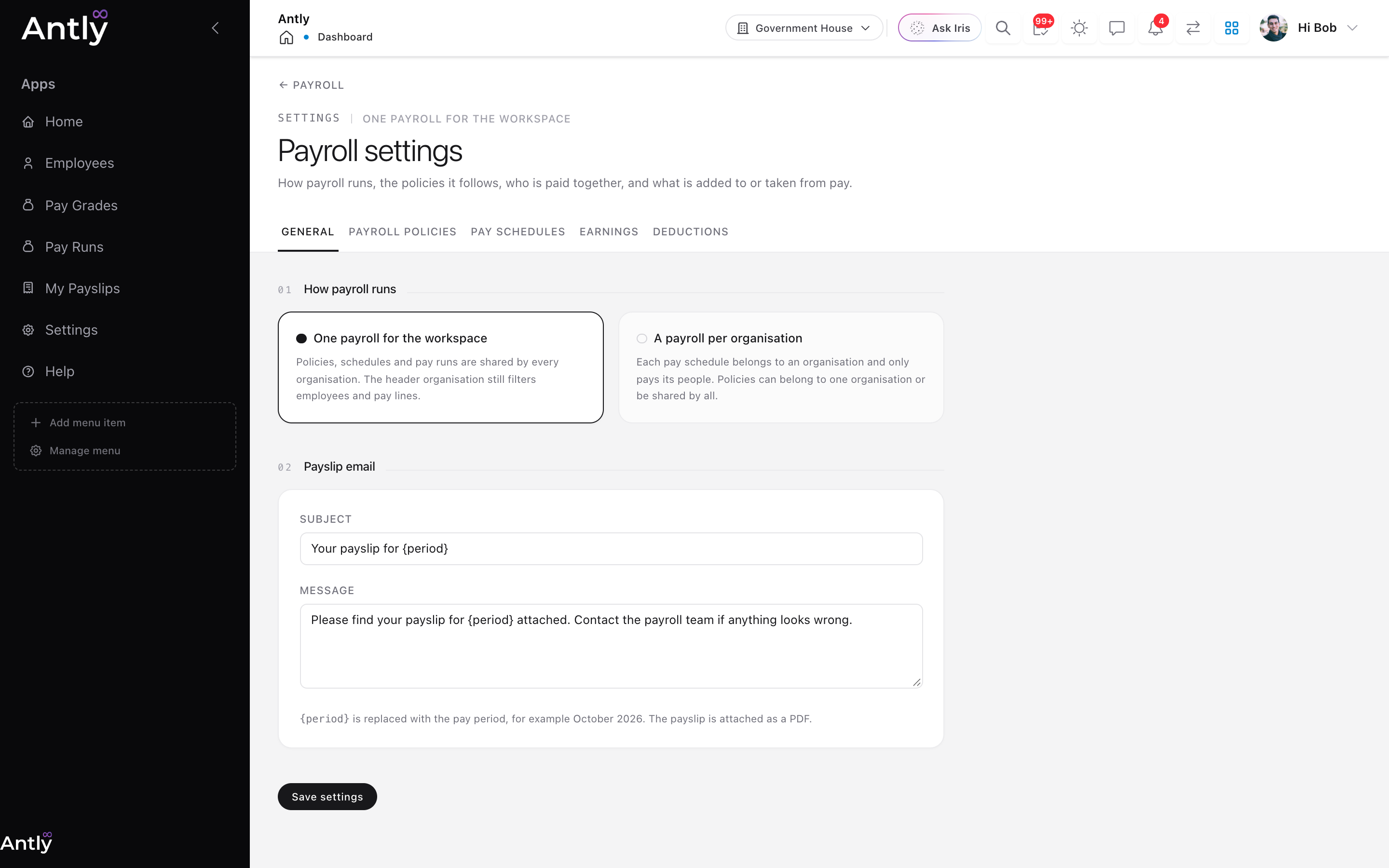 General settings: how payroll runs, and the wording of the payslip email.
2. Pay Schemes, Grades and Steps (Optional)
A pay scheme is a scheme of service that grades and steps belong to, such as CONPSS, CONHESS or CONMESS. Government workspaces often run several side by side, and one organisation can use more than one (a teaching hospital might pay doctors on CONMESS, nurses on CONHESS and administrators on CONPSS).
- Create schemes under Pay Grades → Pay Schemes. Leave a scheme's organisations empty to allow every organisation, or list the ones that may use it.
- Give each pay grade its scheme. The same grade code (for example
07) can exist in different schemes. - When an employee is placed on a grade, Antly checks the grade's scheme is one their organisation uses.
No schemes? Skip this. Grades without a scheme work exactly as before, and employees with a direct salary need no grade at all.
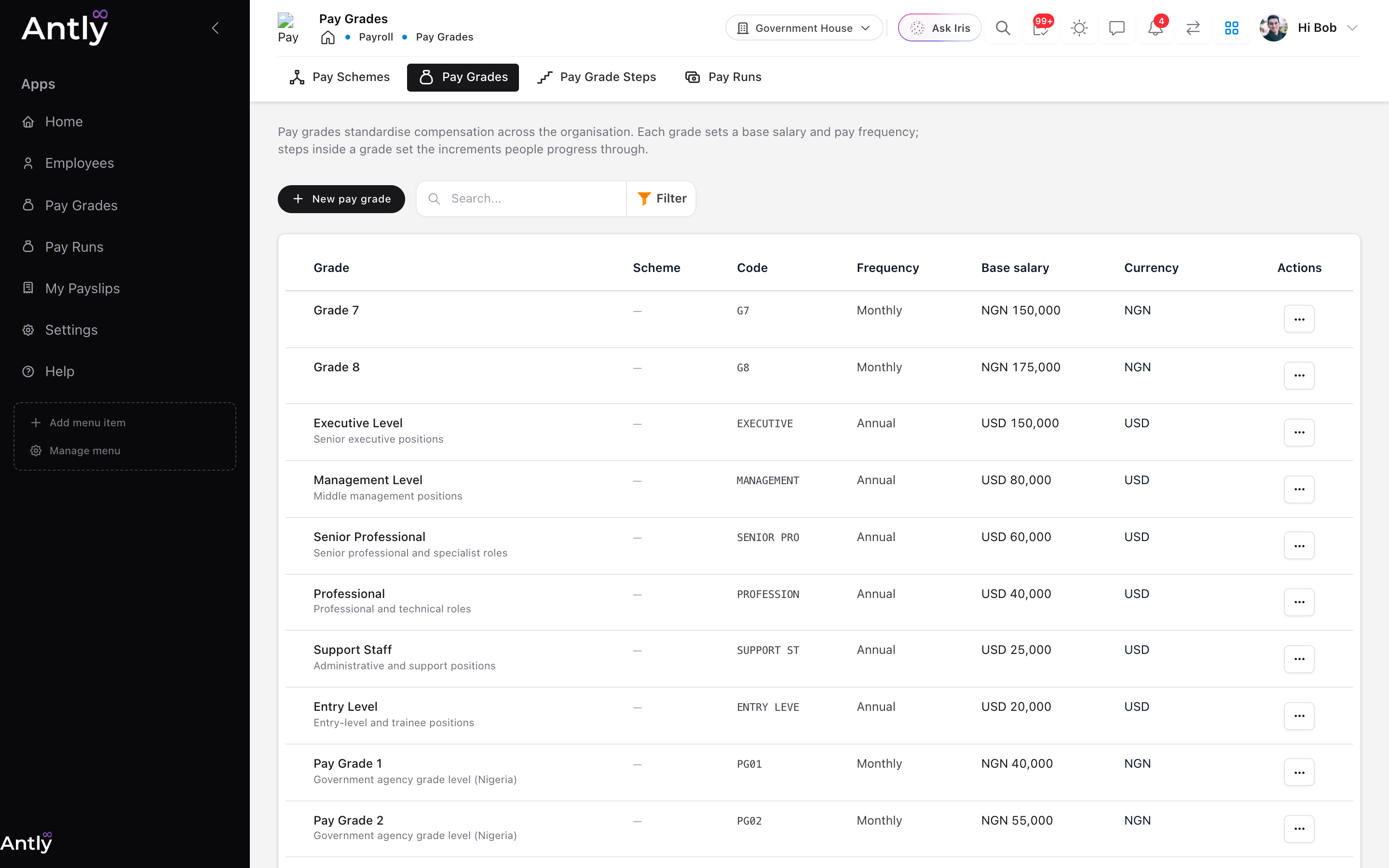 Pay grades with their scheme, code, frequency and base salary.
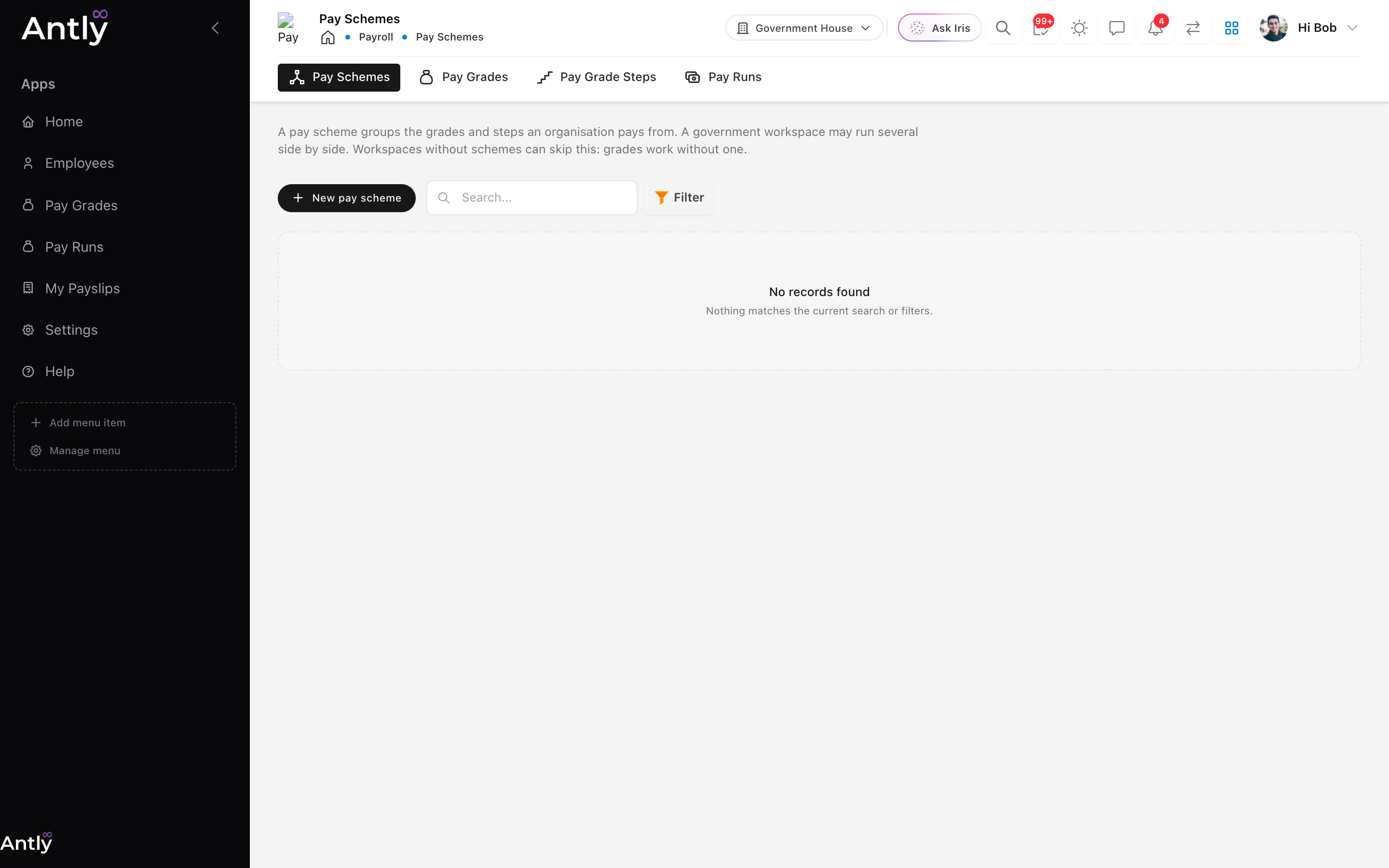 Pay schemes are listed first under Pay Grades.
3. Payroll Policies
A payroll policy sets the rules a pay run follows:
- Currency the run is paid in.
- Tax band basis: bands applied per pay period, or annualised.
- Approval: whether runs need approval, and optionally a named approver (administrators can always approve).
- GL accounts: expense, cash, tax withholding and benefits. Map these and posting writes a balanced journal; leave them all empty (for example without the Finance app) and runs are posted without a journal.
- Organisation: in per-organisation mode, the organisation the policy belongs to. Empty means shared.
4. Pay Schedules
A pay schedule says who is paid together, under which policy, and when the next pay date is.
- Who it pays: everyone, or any mix of pay schemes, departments, teams and named employees. Choosing nobody also pays everyone.
- Organisation: required in per-organisation mode.
- Automation: create pay runs on the pay date by themselves, and optionally calculate and approve them too. Automatic runs are created by a daily job; a missed day is caught up on the next run.
- Notifications: who hears when a run is created or approved.
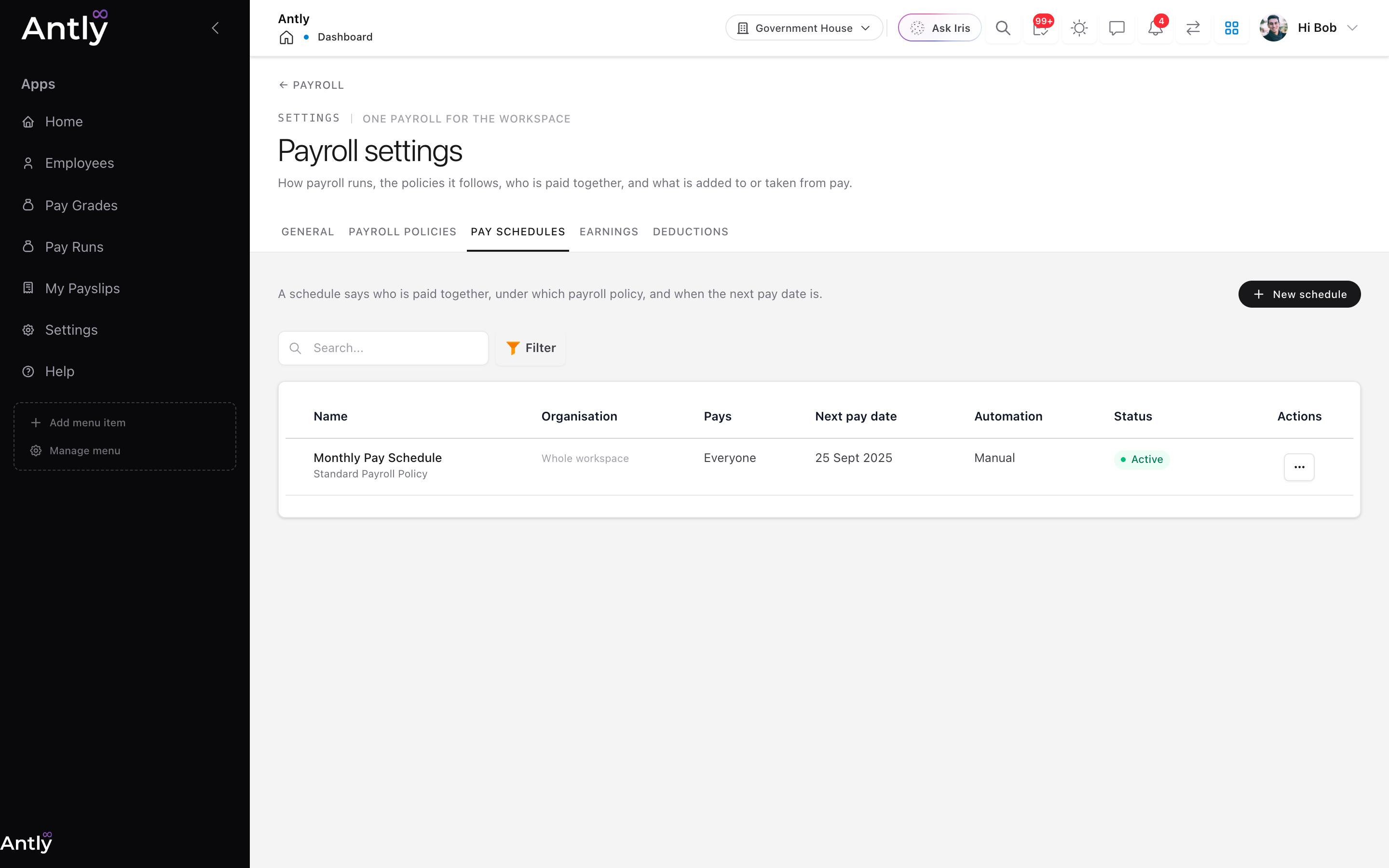 Pay schedules: who each one pays, its organisation, next pay date and automation.
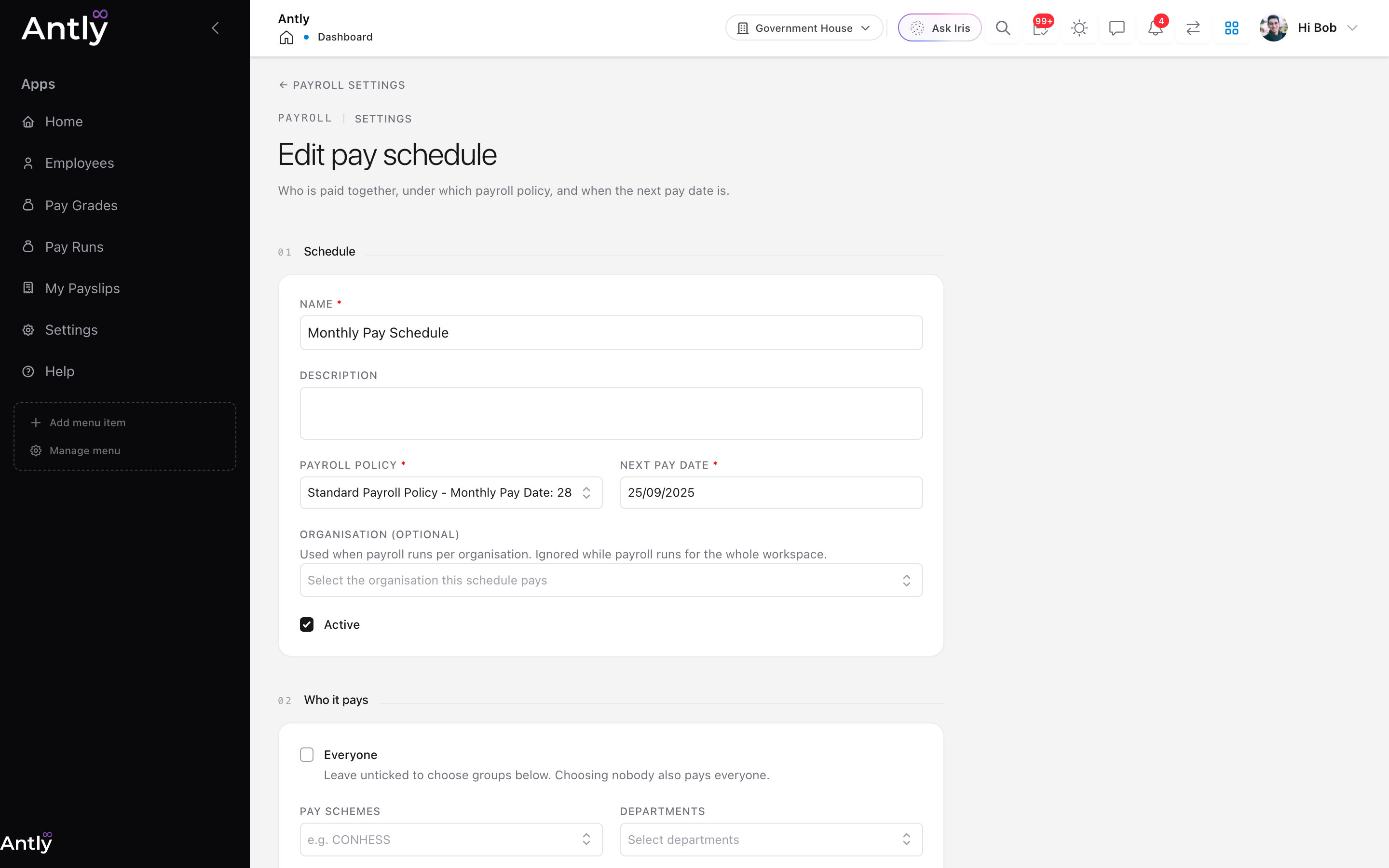 Editing a pay schedule: policy, next pay date, organisation and who it pays.
5. Earnings and Deductions
Earning policies add to pay; deduction policies take from it. Both support:
- Methods: fixed amount, rate per unit, percentage of gross, bands (for example tax brackets) or a formula.
- Who it applies to: everyone, members of chosen groups, or employees it is assigned to individually. An individual assignment overrides the same policy coming from a group or everyone.
- Effective dates, minimum and maximum amounts, and an optional GL account.
- Organisation, in per-organisation mode. Empty means shared; another organisation's policy never applies.
Earnings can be taxable or not. Deductions can be pre-tax (reduce taxable pay) or post-tax, and tax deductions are marked so posting sends them to the tax withholding account.
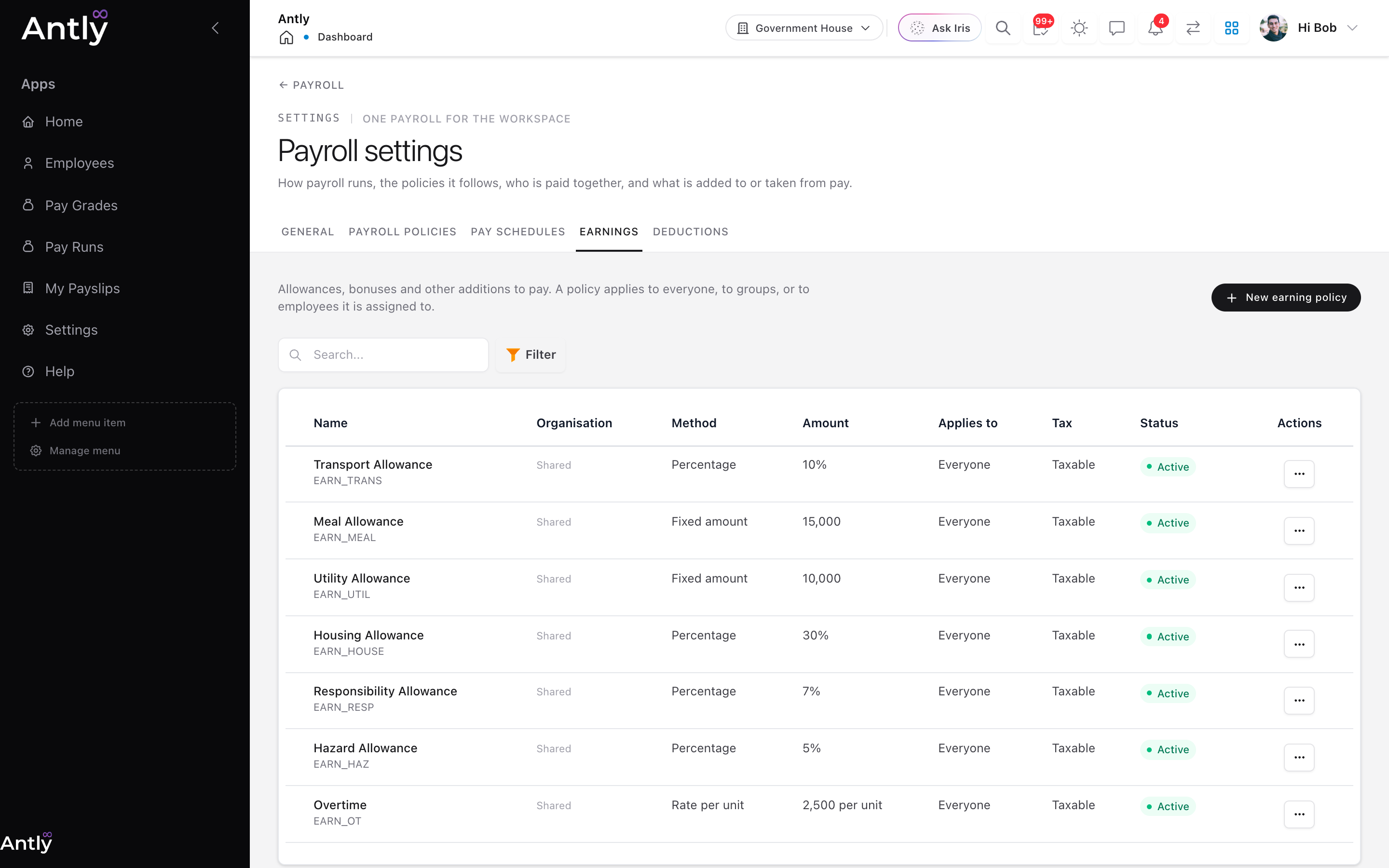 Earning policies: method, amount, who it applies to and tax treatment.
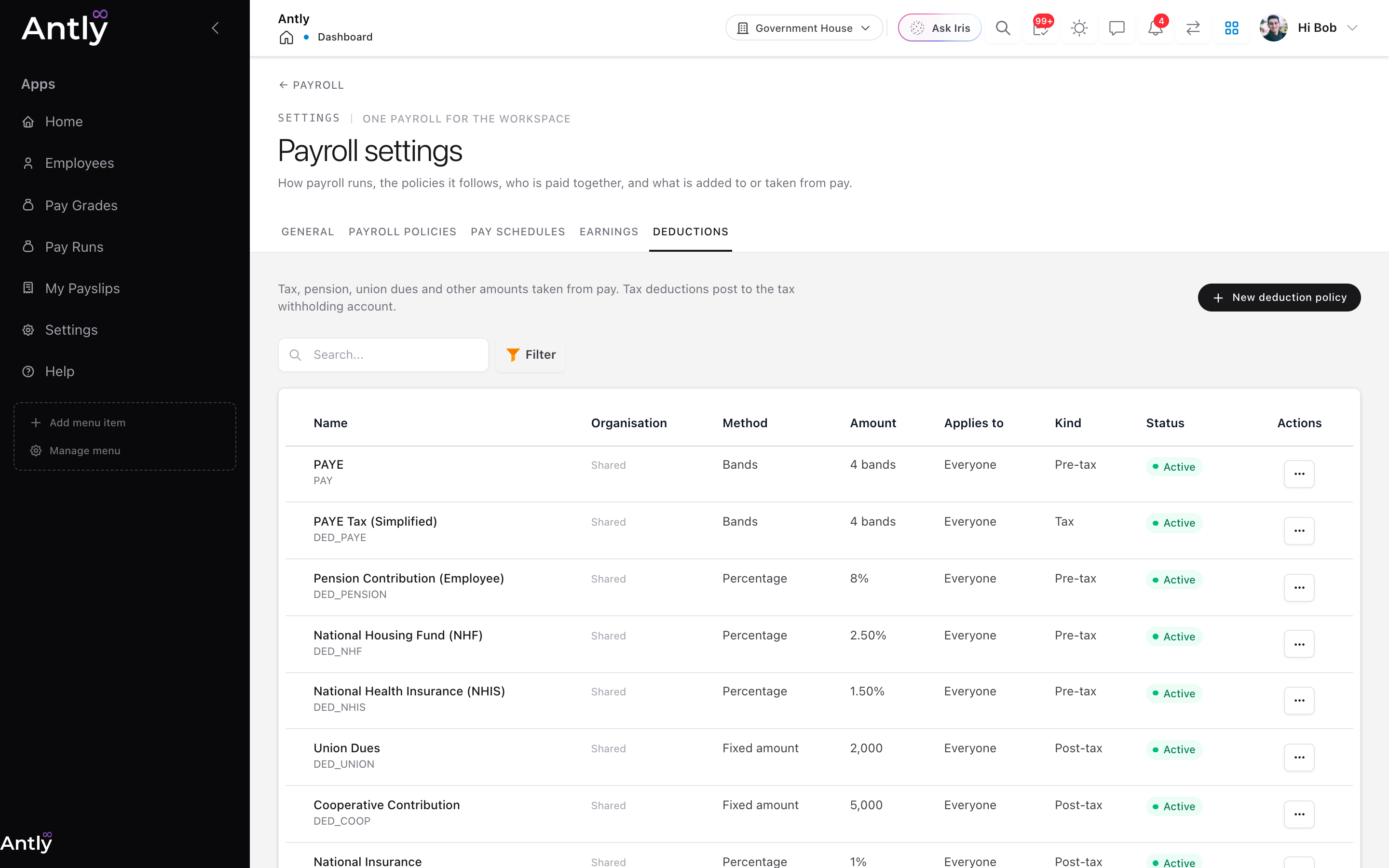 Deduction policies, including tax and pre-tax deductions.
First Run Checklist
- Choose how payroll runs on the General tab and set the payslip email.
- Create at least one payroll policy; map GL accounts if you post to Finance.
- Create a pay schedule and decide who it pays.
- Add the earnings and deductions everyone gets, then group and individual ones.
- Create a pay run for last month and calculate it as a dry run. Check anyone listed as left out.
- Compare a handful of pay lines with your current payroll, then return the run to draft and delete it.
Permissions
- Payroll settings: administrators only.
- Workspace payroll figures on the dashboard: payroll managers and administrators.
- Approving a run: the policy's named approver or an administrator.
- My Payslips: every employee, for their own posted payslips only.